The Start Menu in Windows 11 has been completely redesigned and simplified compared to Windows 10.
N.B. In late 2025 / early 2026 Microsoft redesigned the Windows 11 Start Menu and this change is slowly being rolled out to all users, so in the meantime the below section contains both the New and Old layouts for reference.
Start Menu Overview
The new Start Menu features a three section layout containing Pinned, Recommended and All. It also has a optional Phone Link integration to access connected mobile phone details.

|
Search |
Type here to search installed Apps, Documents and the Web
Another way to quickly search is to click on the Start button and then start typing the name of the app you want
|
|
Pinned Apps |
This area shows all apps you have chosen to pin to the Start Menu
You can toggle between Show all and Show less |
|
Recommended |
This pane shows all recently opened files and apps and recommendations
This area can be turned off in Settings > Personalization > Start |
|
All |
This area shows all you installed apps and you can switch between three different views - Category, Grid or List |
|
User Account |
Click on your user name to change account settings, to lock computer or to sign out from your account |
|
Power |
Click here to sleep, hibernate, restart or shut down your computer
You can also show additional icons here such as Settings, Documents, Pictures etc - this can be done via Settings > Personalization > Start > Folders
|
|
Mobile Device |
If you use Phone Link to connect your mobile phone to your computer then this pane shows battery life, recent messages and photos and provides quick access to messages, calls and photos
You can toggle this pane using the button next to start |


Start Menu Folders
You can group pinned items into folders on your start menu.
You can do this as follows:-
1)Click on an pinned item you would like to group and drag it on top of another item you would like to group it with.
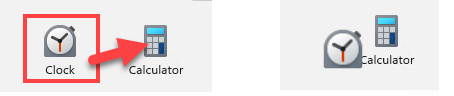
2)A new group will be created called Folder containing the two items.

3)You can now click on this group to open it and view the contents - once open you can rename it by clicking where it says Edit name.


4)To add additional shortcuts drag them into the folder, or to remove shortcuts drag them out of the folder, when you remove the penultimate shortcut the folder is automatically removed and the last shortcut goes back onto the start menu.
Search
You can search through your installed Apps, Documents, Settings and the Web in three ways:-
1)Type into the search box at the top of the Start Menu

- or -
2)Open the Start Menu and just start typing
- or -
3)Click the Search icon on the Taskbar (how it appears below depends on whether you have it set to Search box or Search icon in Settings > Personalization > Taskbar)

Either method will change the Start Menu view to the below which will show your search results divided up into Best Match, Settings, Search the web and Apps
You can also choose whether to show results for All, Apps, Documents, Web, Settings, Folders, Photos and more across the top of the search panel.
You can amend search settings and indexing options by clicking the three dots in the top right corner.
You can also click the icon next to the three dots to choose which connected Microsoft account you are using to search, this will determine what additional content such as OneDrive is shown in the search results.

Start Settings
You can access the Start Menu Settings by clicking the icon on the Start Menu.

or by right clicking on the Start Menu icon.

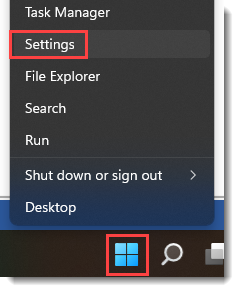
or by pressing.
 +
+ 
and then clicking Personalization > Start

|
Show recently added apps |
When enabled this will show any recently installed apps in the Recommended pane |
|
Show recommended files... |
If enabled then this shows recently accessed files in the Recommended pane
N.B. If turned off then it also turns off showing recent files in File Explorer and in the context menu when you hover over open apps in the task bar (jump lists) |
|
Show recommendations for... |
If enabled shows recommendations for tips, shortcuts, new apps etc |
|
Show websites from your browsing history |
If enabled recent websites you have browsed will appear here |
|
Show the most used apps |
When enabled this will show the apps you use the most in the All apps section of the start menu |
|
Show mobile device in Start |
If you use Phone Link to connect your mobile phone to your computer then this pane shows battery life, recent messages and photos and provides quick access to messages, calls and photos |
|
Folders |
Here you can choose additional icons to show at the bottom of the start menu next to the power icon e.g. settings, documents, pictures, File Explorer etc |


Old Start Menu - pre late 2025 / early 2026
Start Menu Overview

|
Search |
Type here to search installed Apps, Documents and the Web
Another way to quickly search is to click on the Start button and then start typing the name of the app you want
|
|
Pinned Apps |
This area shows all apps you have chosen to pin to the Start Menu |
|
All apps |
Clicking here shows an alphabetical list of all installed apps |
|
Pinned Apps Scroll |
Click here to scroll between pages of pinned apps if you have more than one page (18 apps) |
|
Recommended |
This pane shows all recently opened files and apps |
|
User Account |
Click on your user name to change account settings, to lock computer or to sign out from your account |
|
Power |
Click here to sleep, hibernate, restart or shut down your computer
You can also show additional icons here such as Settings, Documents, Pictures etc - this can be done via Settings > Personalization > Start > Folders
|
Start Menu Folders
You can group pinned items into folders on your start menu.
You can do this as follows:-
5)Click on an pinned item you would like to group and drag it on top of another item you would like to group it with.
6)A new group will be created called Folder containing the two items.
7)You can now click on this group to open it and view the contents - once open you can rename it by clicking where it says Edit name.
8)To add additional shortcuts drag them into the folder, or to remove shortcuts drag them out of the folder, when you remove the penultimate shortcut the folder is automatically removed and the last shortcut goes back onto the start menu.
Search
You can search through your installed Apps, Documents and the Web in three ways:-
4)Type into the search box at the top of the Start Menu

- or -
5)Open the Start Menu and just start typing
- or -
6)Click the Search icon on the Taskbar (how it appears below depends on whether you have it set to Search box or Search icon in Settings > Personalization > Taskbar)
Either method will change the Start Menu view to the below which will show your search results divided up into Best Match, Settings, Search the web and Apps
You can also choose whether to show results for All, Apps, Documents, Web, Settings, Folders, Photos and more across the top of the search panel.
You can amend search settings and indexing options by clicking the three dots in the top right corner.
You can also click the icon next to the three dots to choose which connected Microsoft account you are using to search, this will determine what additional content such as OneDrive is shown in the search results.
Start Settings
You can access the Start Menu Settings by clicking the icon on the Start Menu.
or by right clicking on the Start Menu icon.
or by pressing.
+
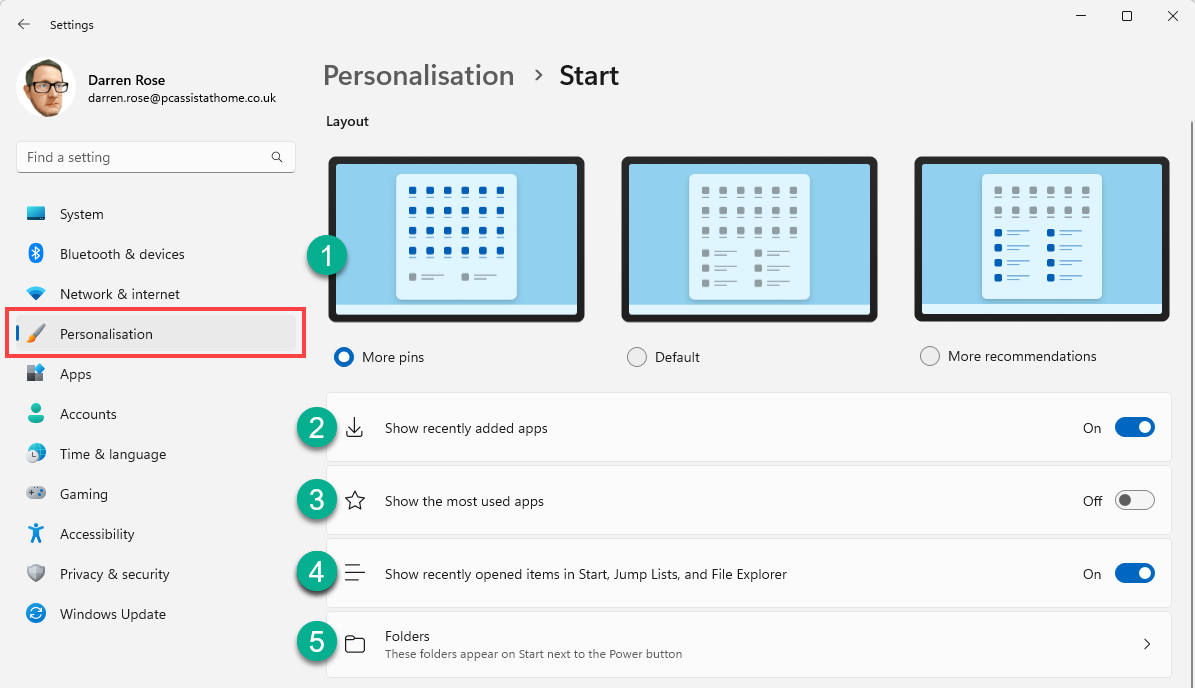
and then clicking Personalization > Start
|
Pins / Recommendations |
You can adjust the layout of the start menu to have more pinned items, more recommendations or an equal amount of space for both (default) |
|
Show recently added apps |
When enabled this will show any recently installed apps in the Recommendations pane at the bottom of the start menu |
|
Show the most used apps |
When enabled this will show the apps you use the most in the All apps section of the start menu |
|
Show recently opened items.. |
This shows all recently opened files and apps in the Recommendations pane at the bottom of the start menu (in jump lists and in file explorer) |
|
Folders |
Here you can choose additional icons to show at the bottom of the start menu next to the power icon e.g. settings, documents, pictures, File Explorer etc |